About Me

- Paul
- Currently working as a Pen Tester, I'm interested in Android and web apps.
Showing posts with label List Title. Show all posts
Showing posts with label List Title. Show all posts
Friday, 3 September 2010
Removing Title from SharePoint List, not such a good idea
I had a previous post called Removing 'Title' from a SharePoint List but its caused some problems namely when you enter values into the List and then try to edit them. It seems that editing is removed by default when you remove Title and you have to go into Actions -> Edit in Datasheet to make changes. However, because I have a custom list this doesn't work. So the quick solution is keep Title and simply rename it to suit your List. This is easily done because Title doesn't have to be a unique value.

Wednesday, 18 August 2010
Removing 'Title' from a SharePoint List
Every time you create a List that pesky 'Title' field is automatically created. This post will explain how to get rid of it.
EDIT -> Have a look at This Post before proceeding
A new List;

Step 1
To start click Settings > List Settings
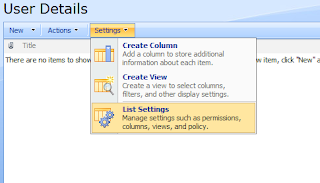
The Settings Page;
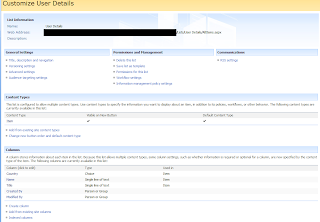
Go to Advance Settings under General Settings and check the radio button to 'Yes' where it says 'Allow Management of Content Types?'.

Once you click okay your back in the Settings Screen. Scroll down to Item under Content Types and then click on Title.
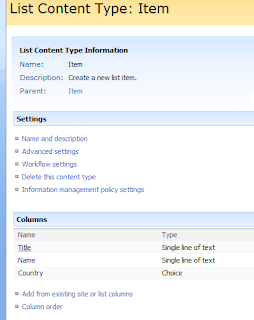
Once Title is clicked select the radio button 'Hidden (Will not appear in forms)' and press OK.
 That gets rid of the 'Title' field.
Optional
Change the Views
On the Settings page scroll down to 'Views' and click on 'All Items'

Now here you can select what Items will be in all the Views presented to the user. Select which ones you want and what positions you want them at.
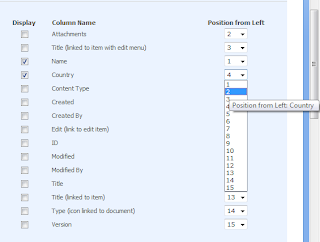
Once you press OK and then go to create a new Item you should only have the Items you have selected here within the new Item form. I'll post up any other solutions as I discover them.
EDIT -> Have a look at This Post before proceeding
A new List;

Step 1
To start click Settings > List Settings

The Settings Page;


Go to Advance Settings under General Settings and check the radio button to 'Yes' where it says 'Allow Management of Content Types?'.

Once you click okay your back in the Settings Screen. Scroll down to Item under Content Types and then click on Title.

Once Title is clicked select the radio button 'Hidden (Will not appear in forms)' and press OK.
 That gets rid of the 'Title' field.
Optional
Change the Views
On the Settings page scroll down to 'Views' and click on 'All Items'

Now here you can select what Items will be in all the Views presented to the user. Select which ones you want and what positions you want them at.

Once you press OK and then go to create a new Item you should only have the Items you have selected here within the new Item form. I'll post up any other solutions as I discover them.
Subscribe to:
Posts (Atom)